From upload to export: Managing your files and chats
These are the methods to upload documents and export results. Whether it's uploading files, exporting chats, or saving prompts, Noxtua helps you maintain an overview, streamline your workflows, and keep your content accessible for you and your team.

In Noxtua, you can upload documents to your chats and export generated results and full conversations. This gives you the flexibility to reuse content directly, document your work, or share it with colleagues.
How to upload a document
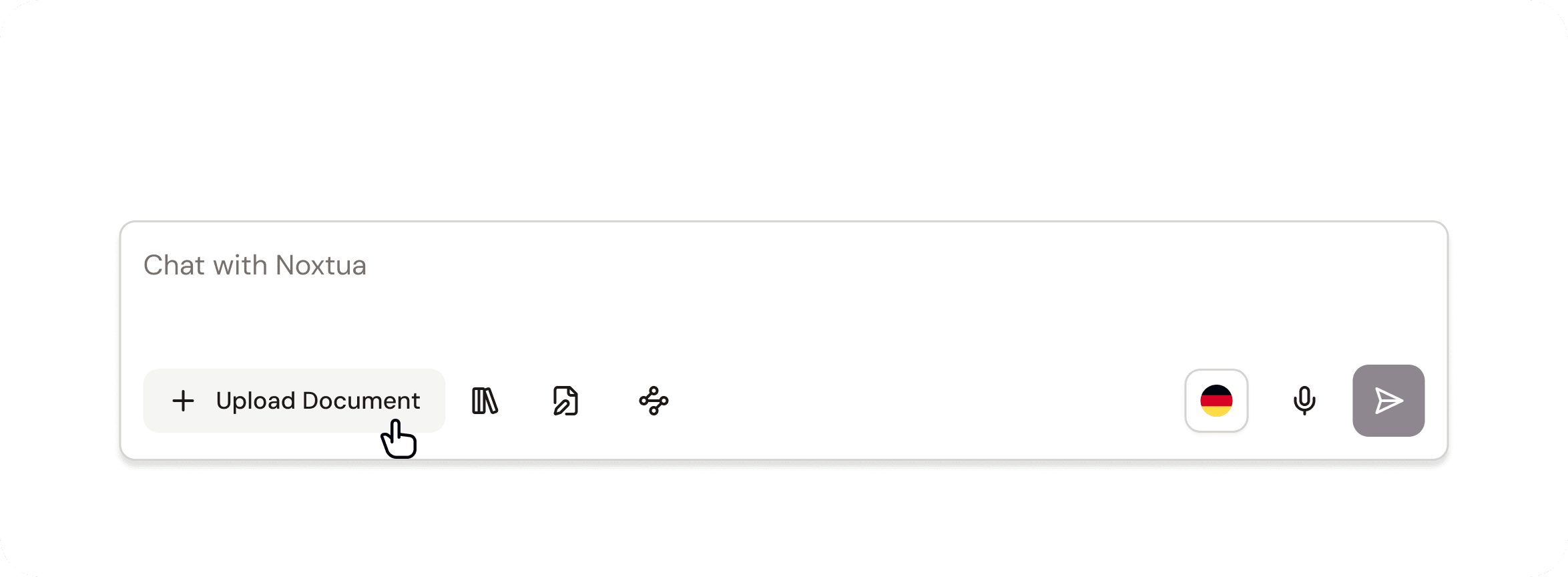
To get well-informed, accurate answers, you can upload your own files directly to the chat. There are two convenient ways to do this:
Click the “Upload document” button, then choose the file you want (for example, a PDF, Word, or Excel file)
Simply drag and drop the file into the chat.
By uploading documents, you provide Noxtua with additional context, which helps enhance the quality and relevance of the responses you receive.
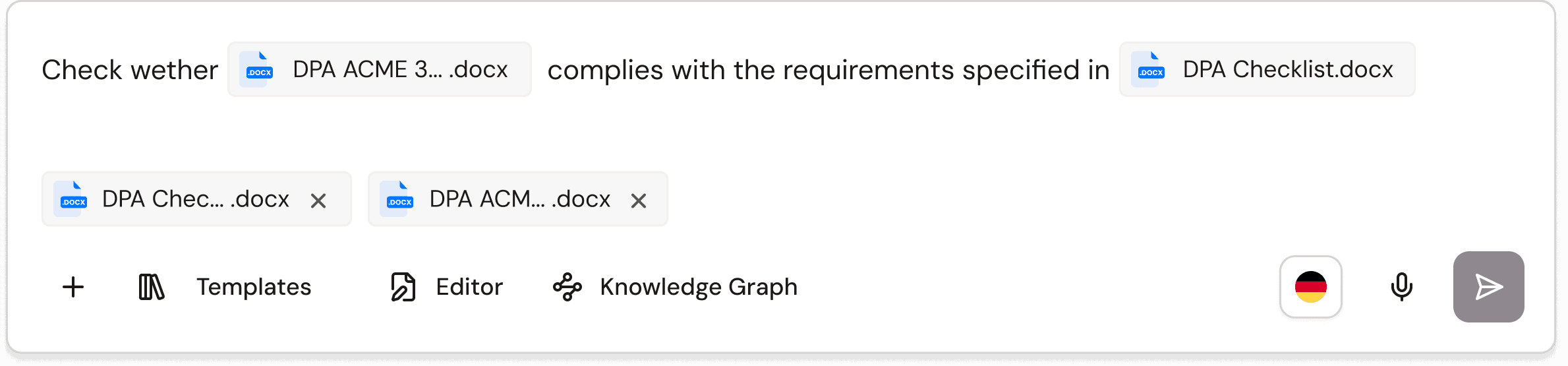
When working with multiple uploaded documents, type @ in the chat to reference a specific file. This gives the AI the exact context it needs to determine which document to work with and how.
How to download results
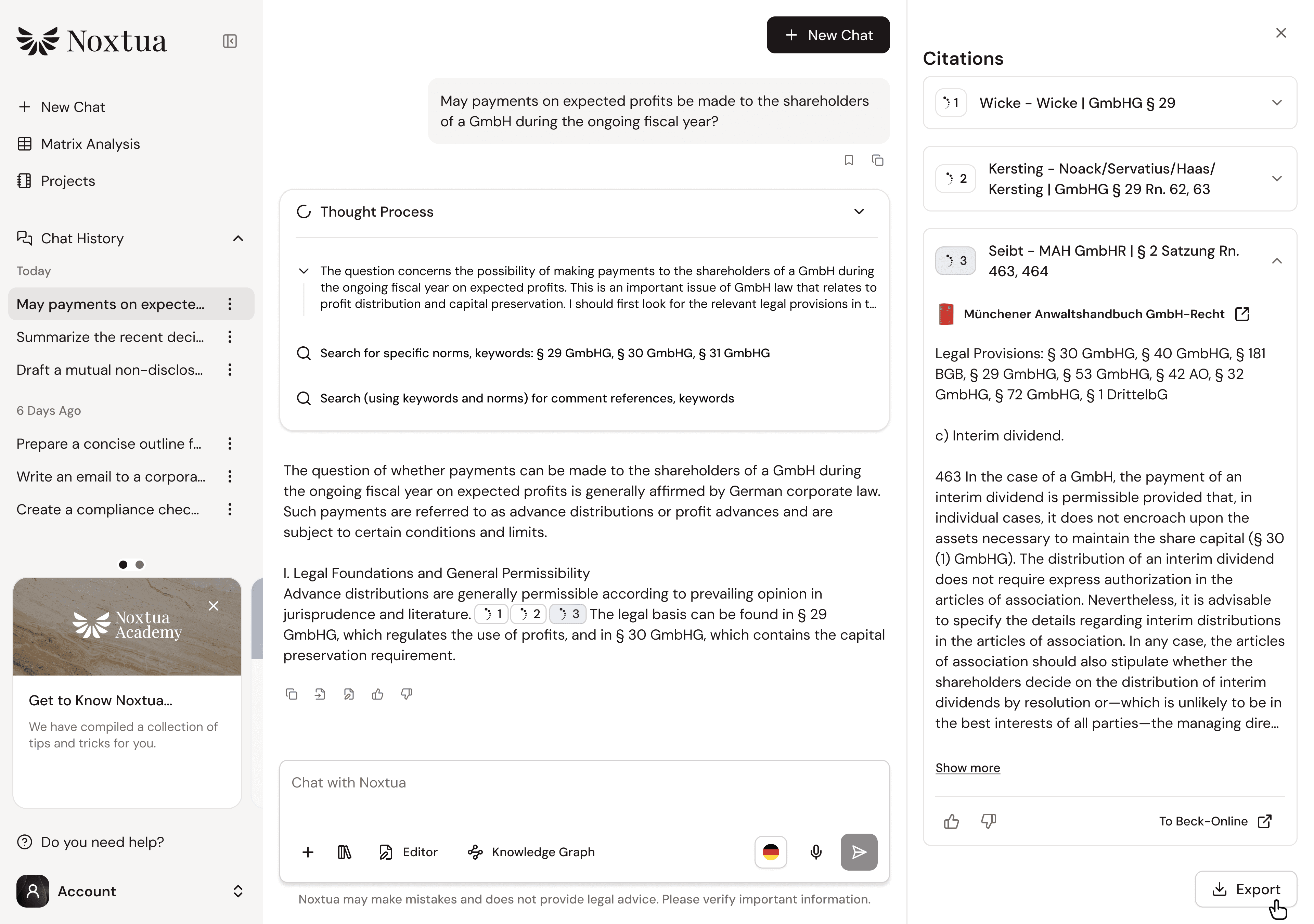
When Noxtua generates a document for you, such as a summary or an argumentation aid, you can save it directly. Wait until the answer is fully generated, then click the “Download” button in the answer area. The file (in Word .docx format) will be automatically saved to your default downloads folder.
You can also copy individual answers easily. Just click the icon with two squares to copy the text to your clipboard.

How to export a chat
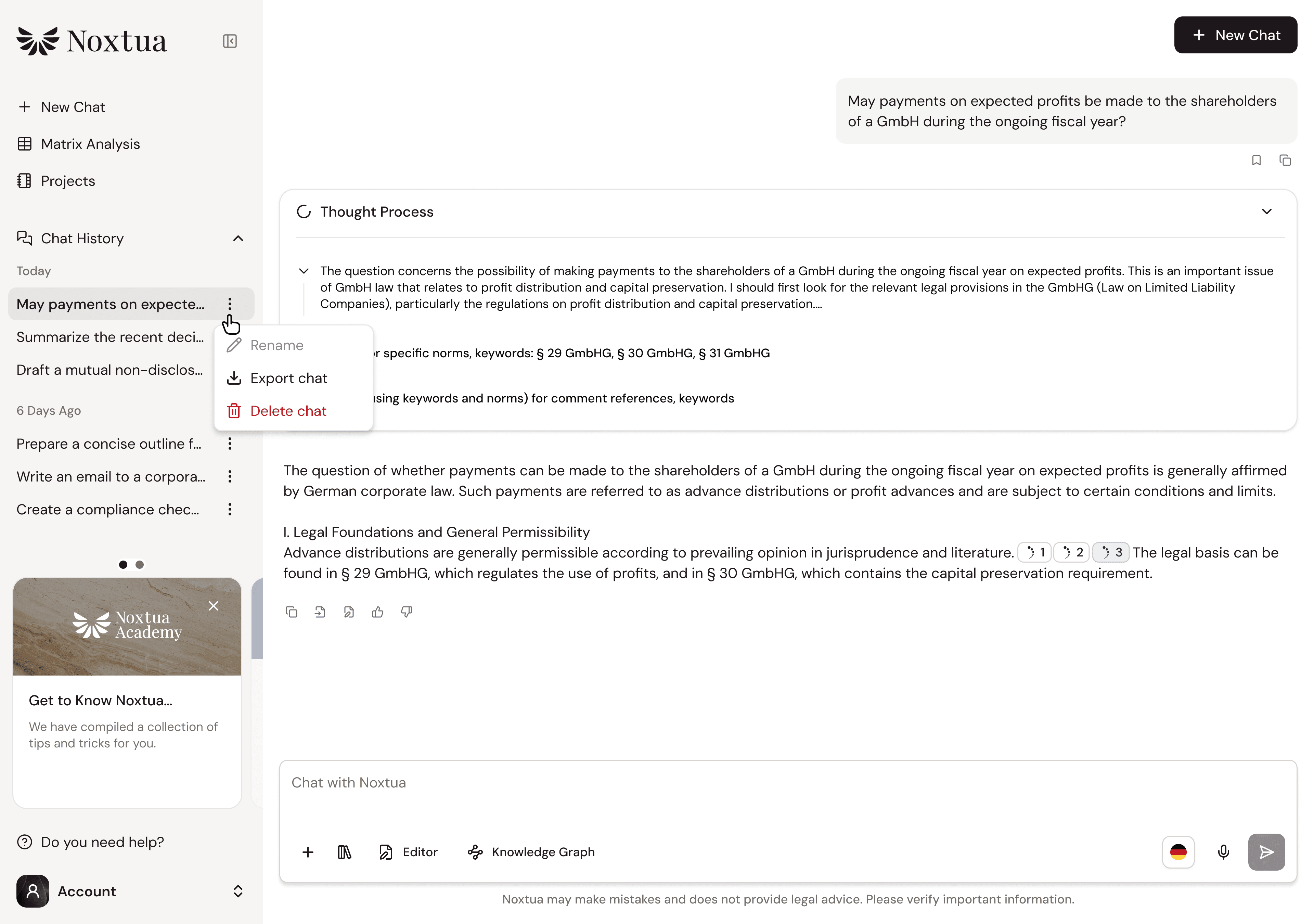
Saving entire conversations with Noxtua is simple, thanks to local storage of your chat histories in the browser. Here’s how to export a chat:
Open the chat you want to export from your chat history.
Click the menu icon (⋮) on the right side of the chat window.
Select “Export chat.”
The chat will then be exported as a Word document that includes both your inputs (prompts) and Noxtua’s responses. The exported file will be saved directly to your downloads folder for easy access.
Petra Zatkova